
Kite’s Map View Dashboard allows you to see observations from now back to 1 hour ago on a map, so you can visually see how the weather is developing.
This dashboard is only available for sites located in Australia, as it uses radar data from the Australian Bureau of Meteorology (BOM).
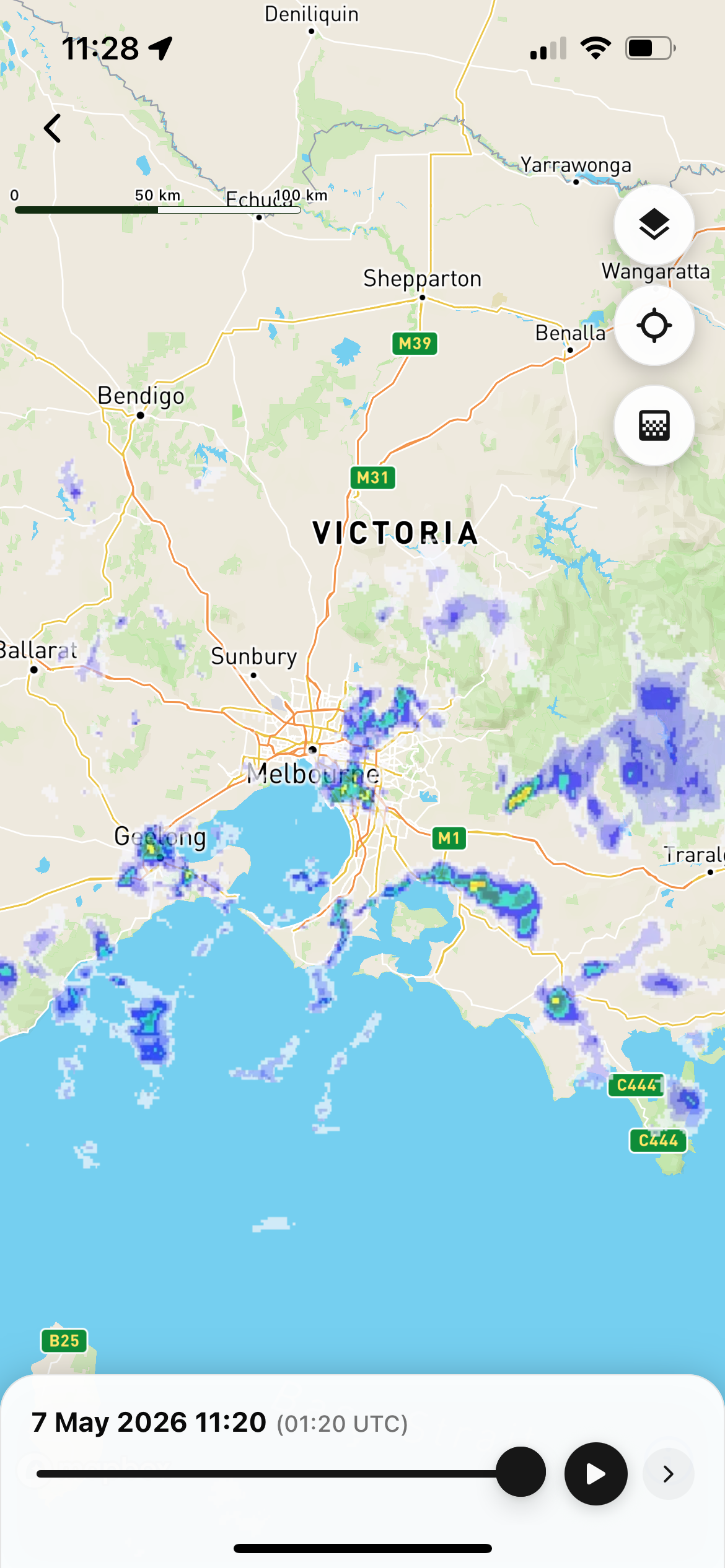
The observations you can view include:
-
Live lightning strikes (if included in your subscription)
-
The BOM’s rain radar
-
BOM weather warnings
-
Temperature from BOM weather stations
-
Rain since 9 AM measured at BOM weather stations
-
Wind speed and direction from BOM weather stations
Using the Dashboard in the Mobile App
1. Choose a base map
Click on the Map Layers button in the top right-hand corner of the map. It looks like this:

The map layers menu will appear as shown below:
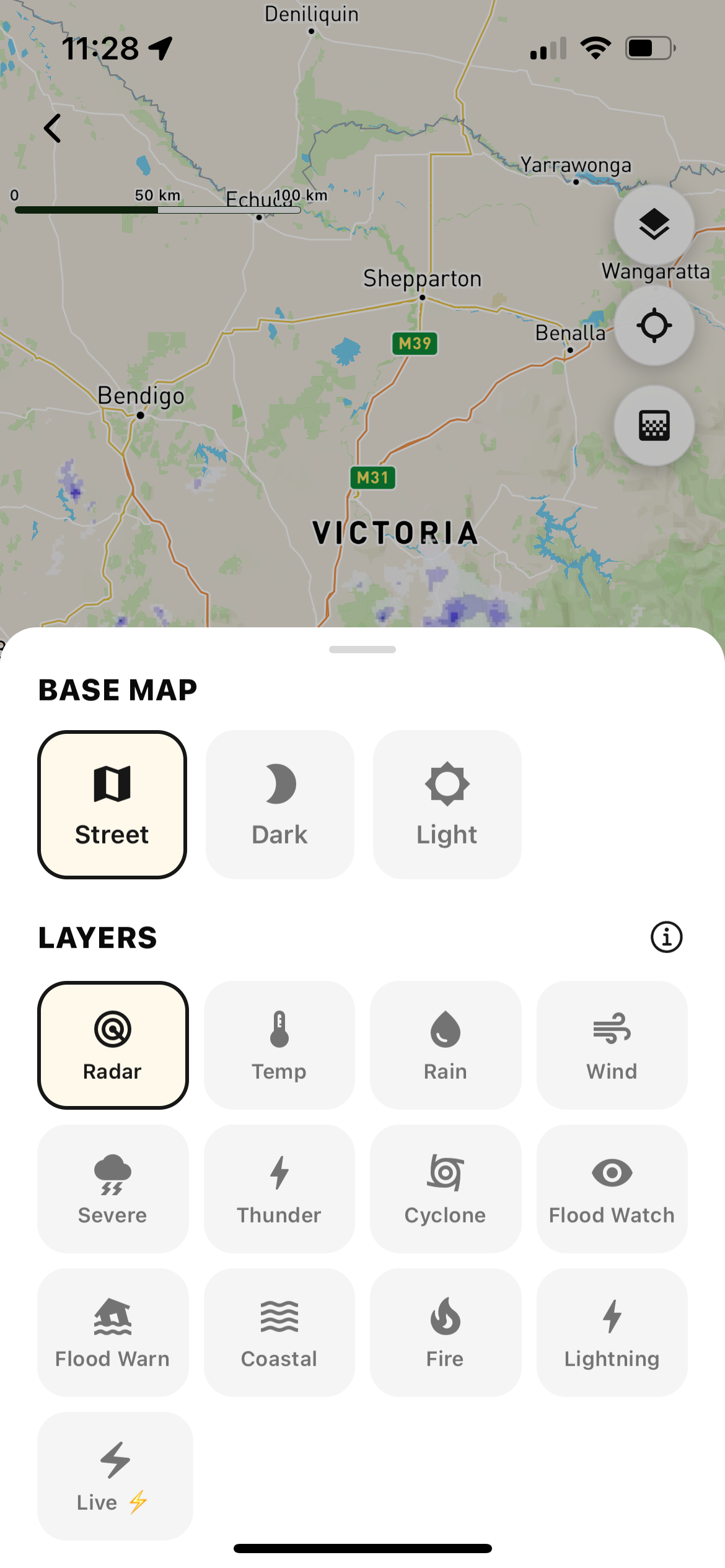
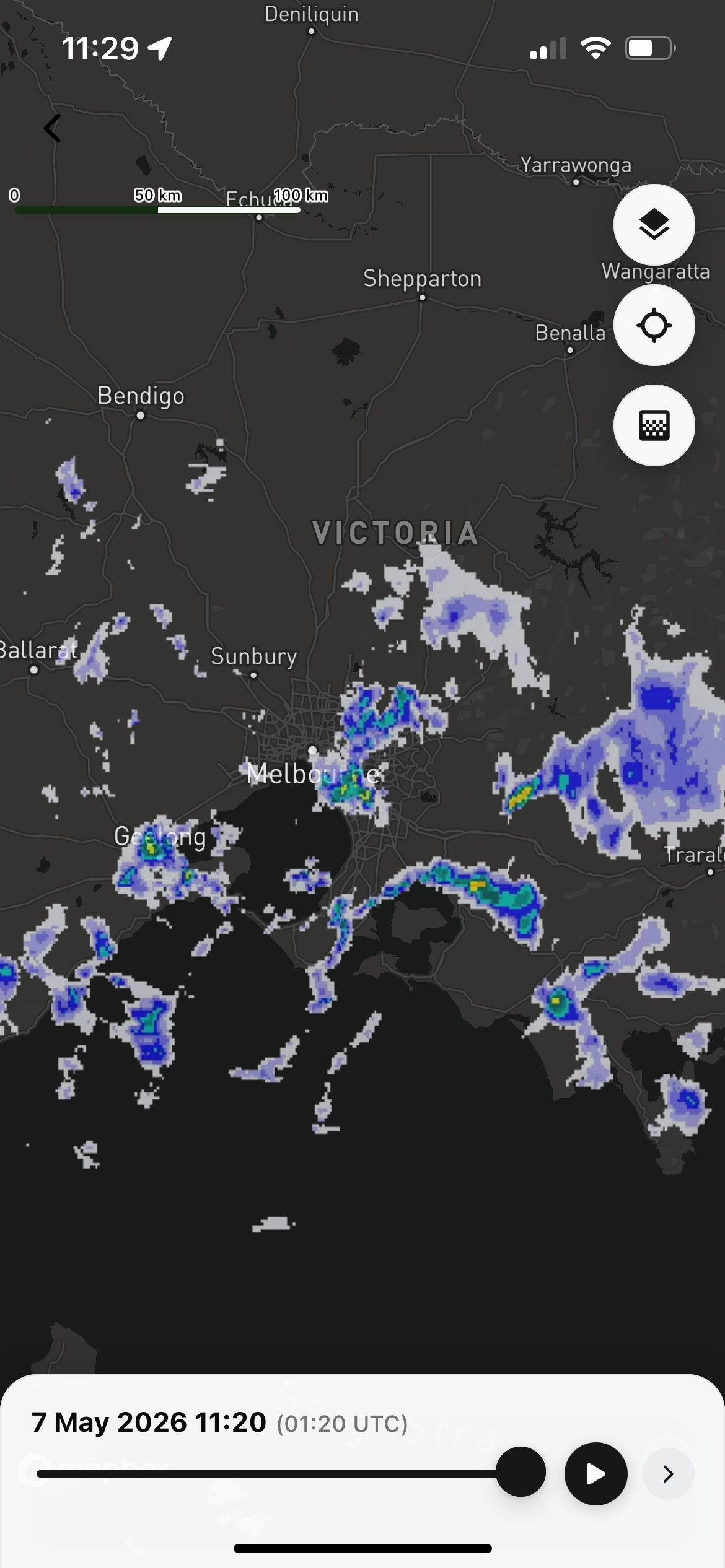
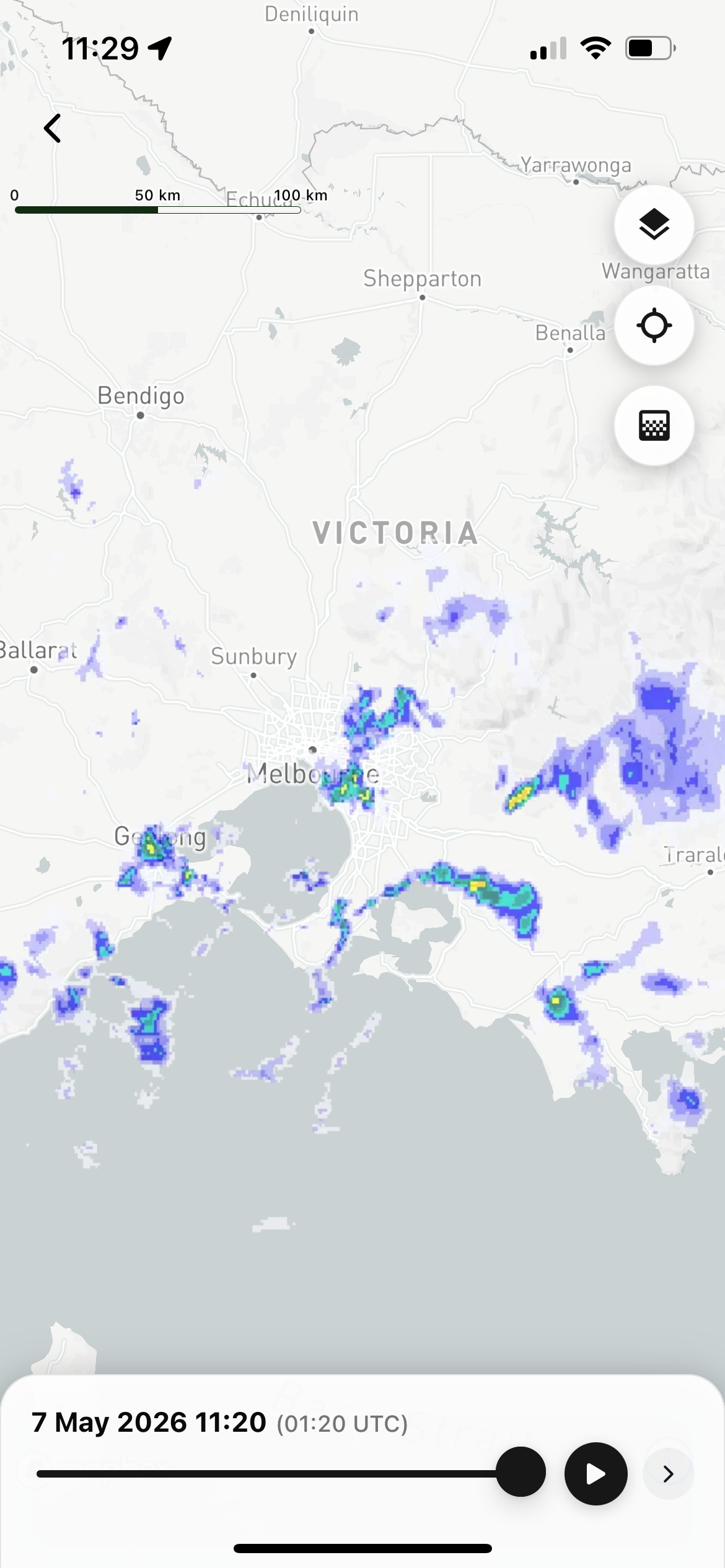
The base maps available include Street, Dark, and Light. You can choose whatever base map you would prefer.
2. Select map layers
In the map layers menu (shown above), select as many map layers as you would like to view. There are 4 categories of map layers available to select:
Lightning
Live and recent lightning strike locations, including strikes from cloud-to-cloud and cloud-to-ground.
These layers are only available for subscription organisations with lightning data set up in Kite. Please contact us at support@weatherintelligence.global if you are interested in this feature.
Radar
Displays data from the BOM’s rain radar network.
Observations
Displays data from the BOM’s weather station network. This includes measurements of Temperature and Rain since 9 AM (displayed on the map as numbers in coloured circles), and Wind Speed and Direction (displayed as coloured arrows).
Warnings
Includes severe weather, severe thunderstorm, cyclone tracking, flooding, coastal hazard and fire weather warnings. Each warning is displayed on the map as highlighted areas, using colours according to their legends.
3. View layer legends
To see legends for your selected map layers, select the following button in the top right-hand corner of the map, if it is visible:

This will only be visible if selected map layers have legends (not all of them do).
This will open the Active Layer Legends menu, as shown below. Click on each active layer to view its colour legend.
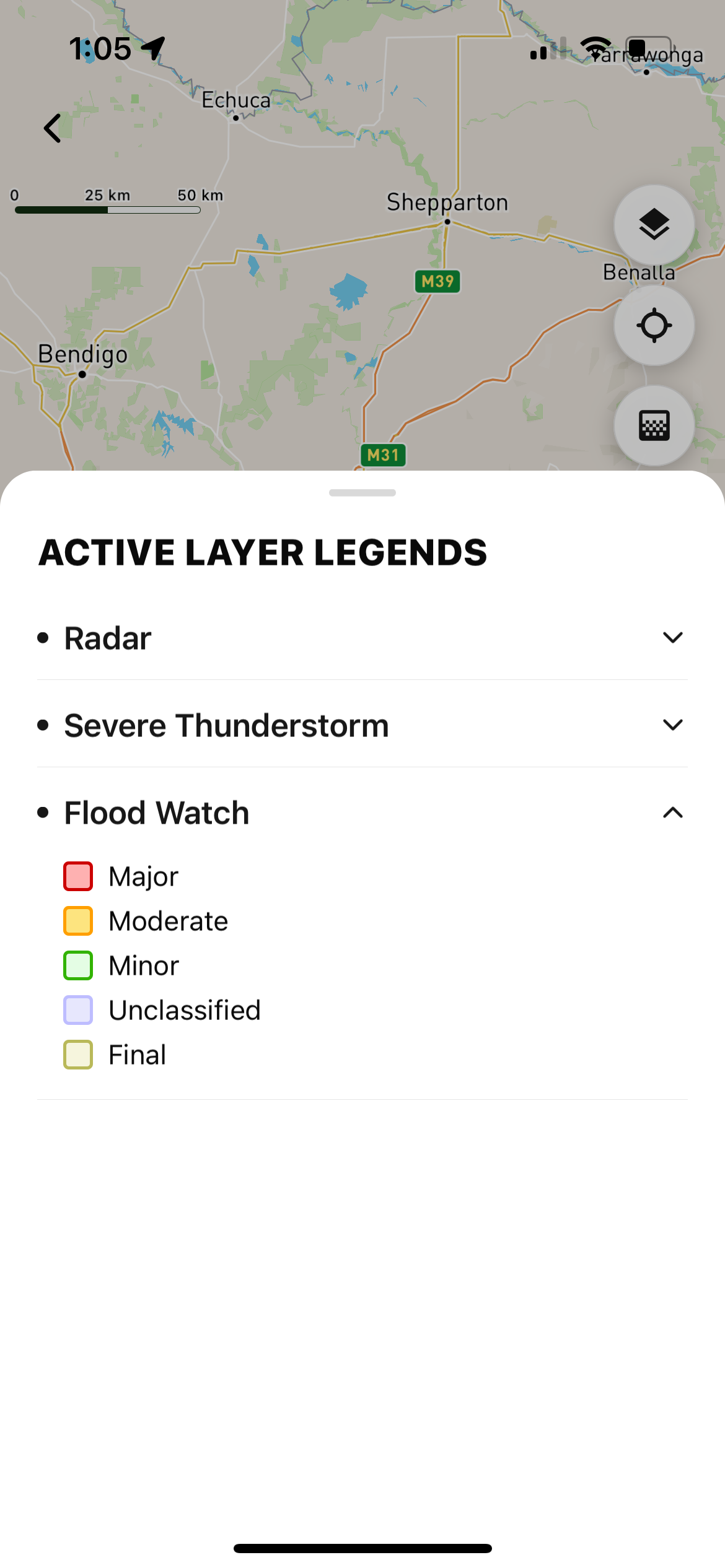
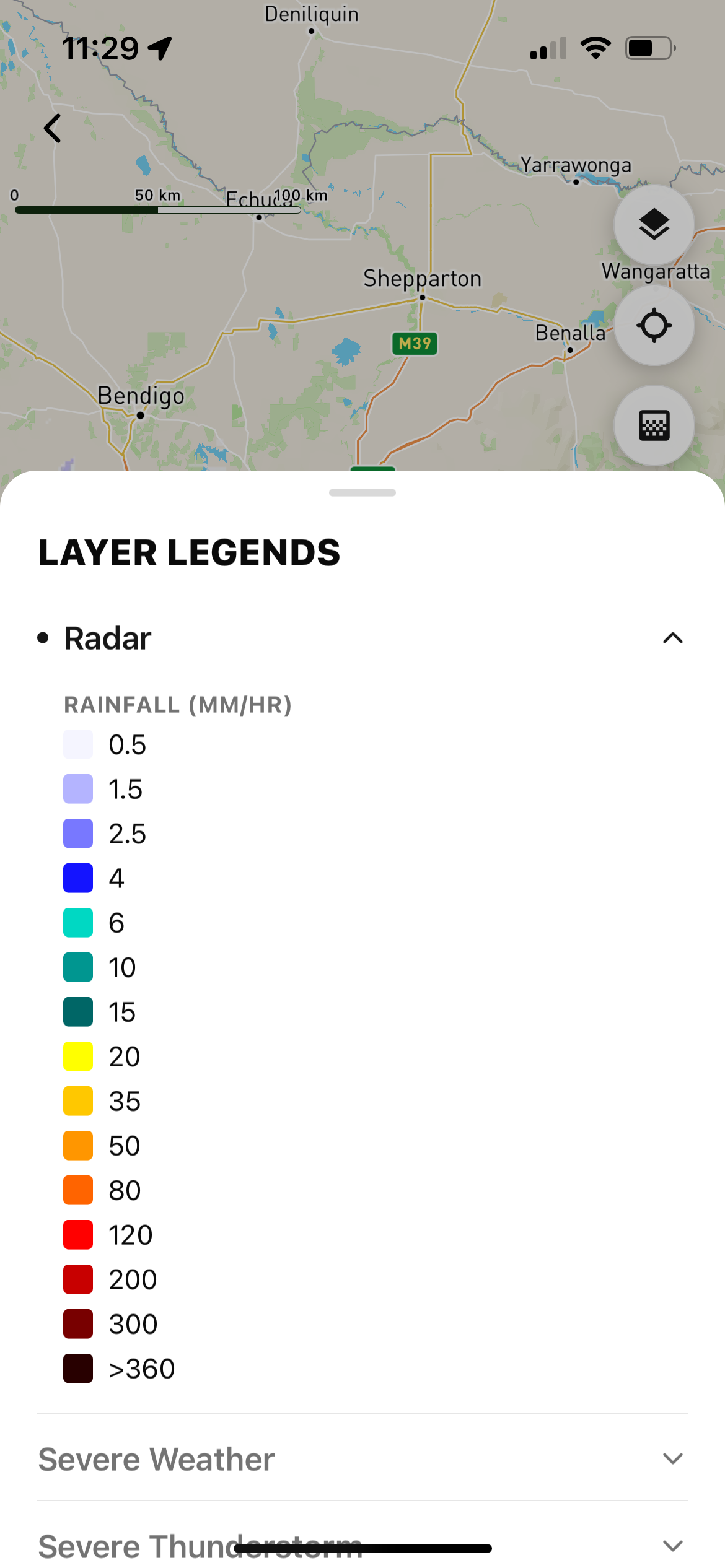
You can also see the legends for all map layers by first going to the Map Layers menu:
Then click on the 
4. View your animated map
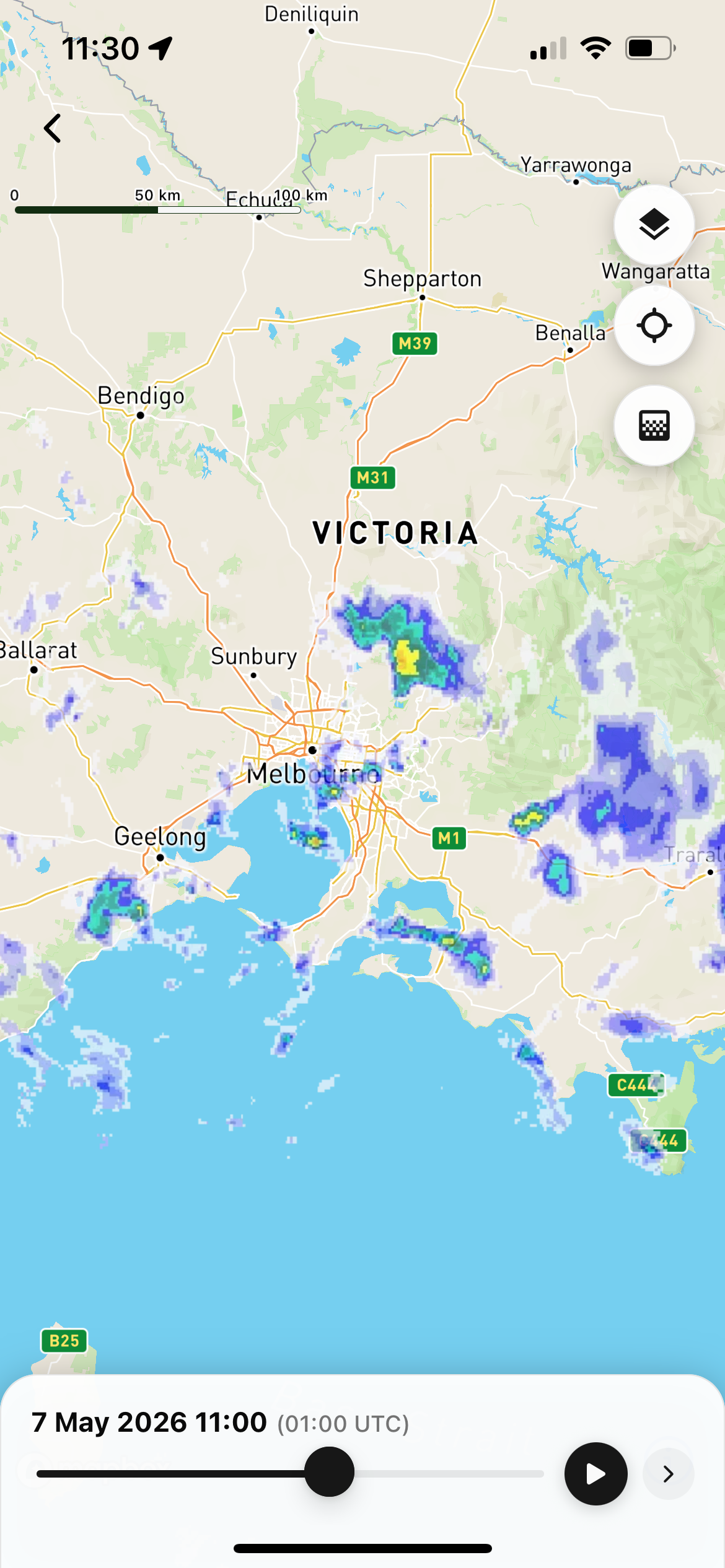
The layers you selected should now be visible on the map.
In the bottom left-hand corner of the map, you can see what time is currently being displayed. Select the play button 
.PNG?cb=ee1db6af326040b6c2fb09ce592861b0)
You can also move around the map by clicking and dragging, and zoom in/out by pinching with two fingers. Centre the map on the currently selected facility by clicking this button in the top right-hand corner:

5. Experiment!
Repeat these steps to view different map layers and map types, to see which ones are most helpful for you!