Keeping good records of your cattle observations is not only a legal requirement (in Australia at least, according to NFAS) but it can help you better manage your heat risk in the future. Understanding which days your cattle are showing early signs of heat stress and keeping track of them will allow you to better understand your triggers for action.
That is why we developed Kite’s Cattle Observation Log, which can be accessed on the Kite mobile app. Once a cattle population is set up, you can easily collect a record of your cattle every day.
The Cattle Observations Log is available for everyone and we strongly encourage you all to use it!
Premium and Standard subscriptions will also see a summary of the cattle observations collected in the previous 24 hours on their toolbox reports. The toolbox report will have everything you need to keep on top of the heat risk at your feedlot.
See here for more on how to take good quality cattle observations.
How to use the Mobile App Cattle Observations Log
The Cattle Observations Log can be accessed by selecting the Cattle Observations menu item in the Kite mobile app.
Creating a new population
Before you start recording observations, you need to specify the cattle population/s you will monitor.
-
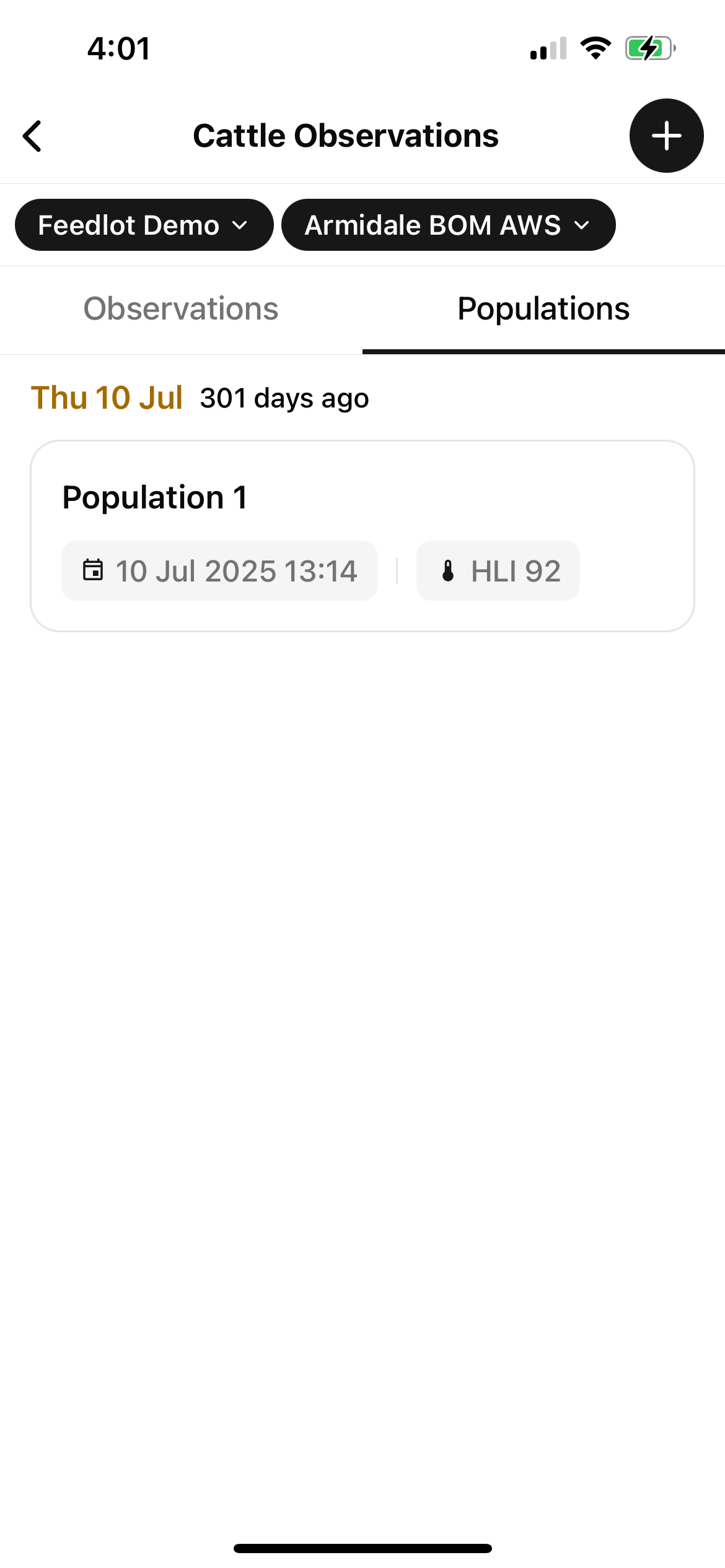
Go to the Populations tab
-
Select the + button in the top right-hand corner
-
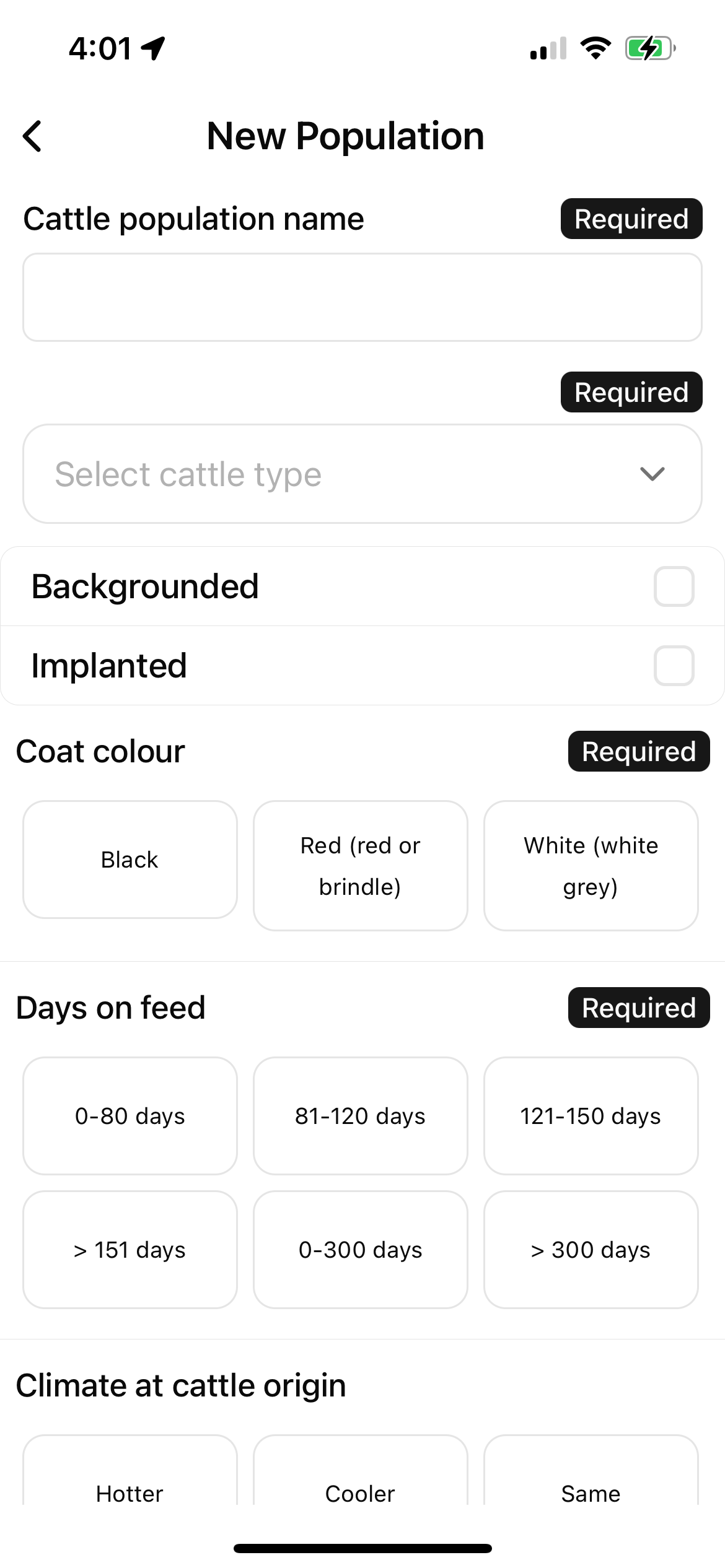
A form should be shown that looks like this:
-
You must then enter the following information (fields marked as required):
-
Cattle population name - the name which you will use to refer to this population in the future
-
Cattle type
-
Coat colour
-
Days on feed
-
Shade provision (at midday)
-
Pen aspect
-
You can also provide information in the optional fields if you know the answers.
-
Select Save Population.
Managing Populations
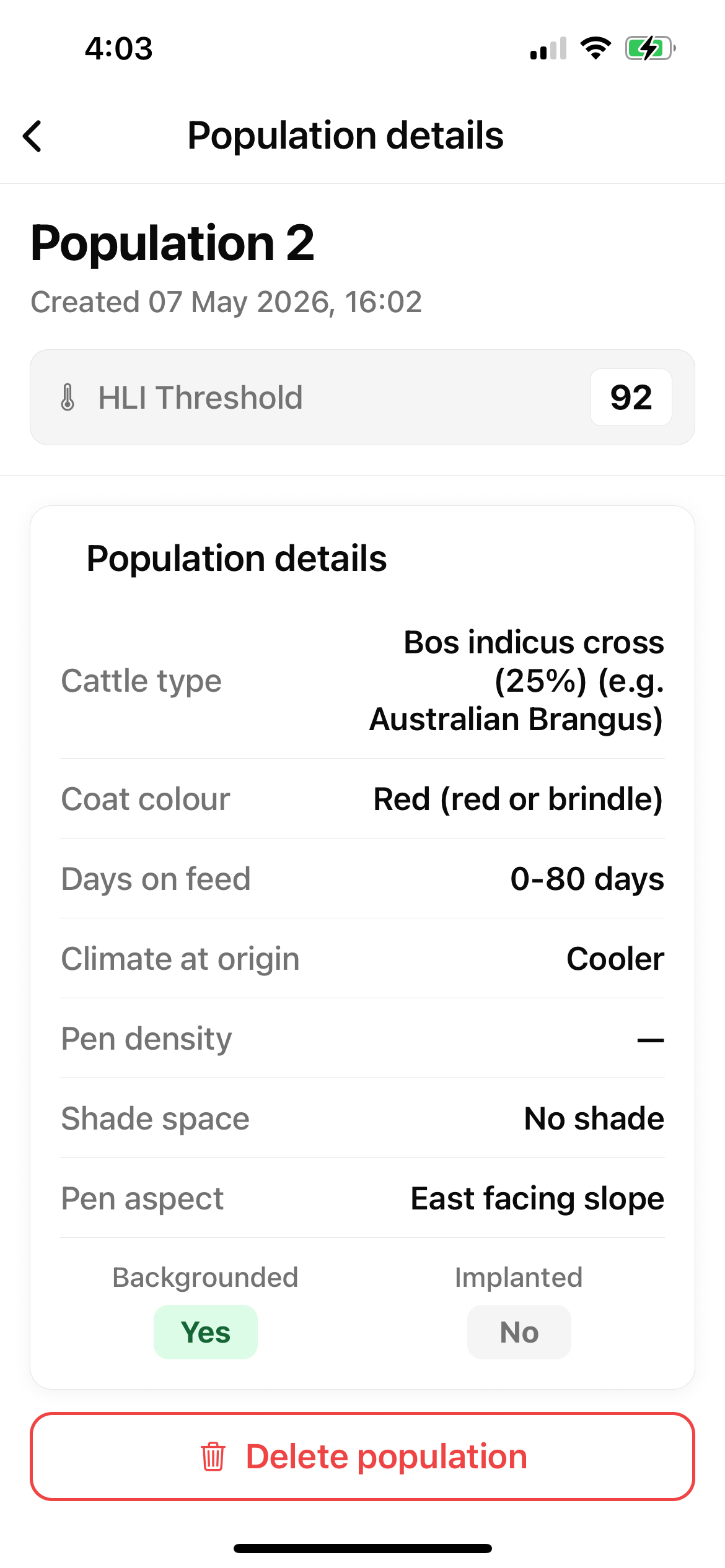
In the populations summary list (shown below), you can now view your created population's:
-
Name
-
Creation time
-
HLI threshold
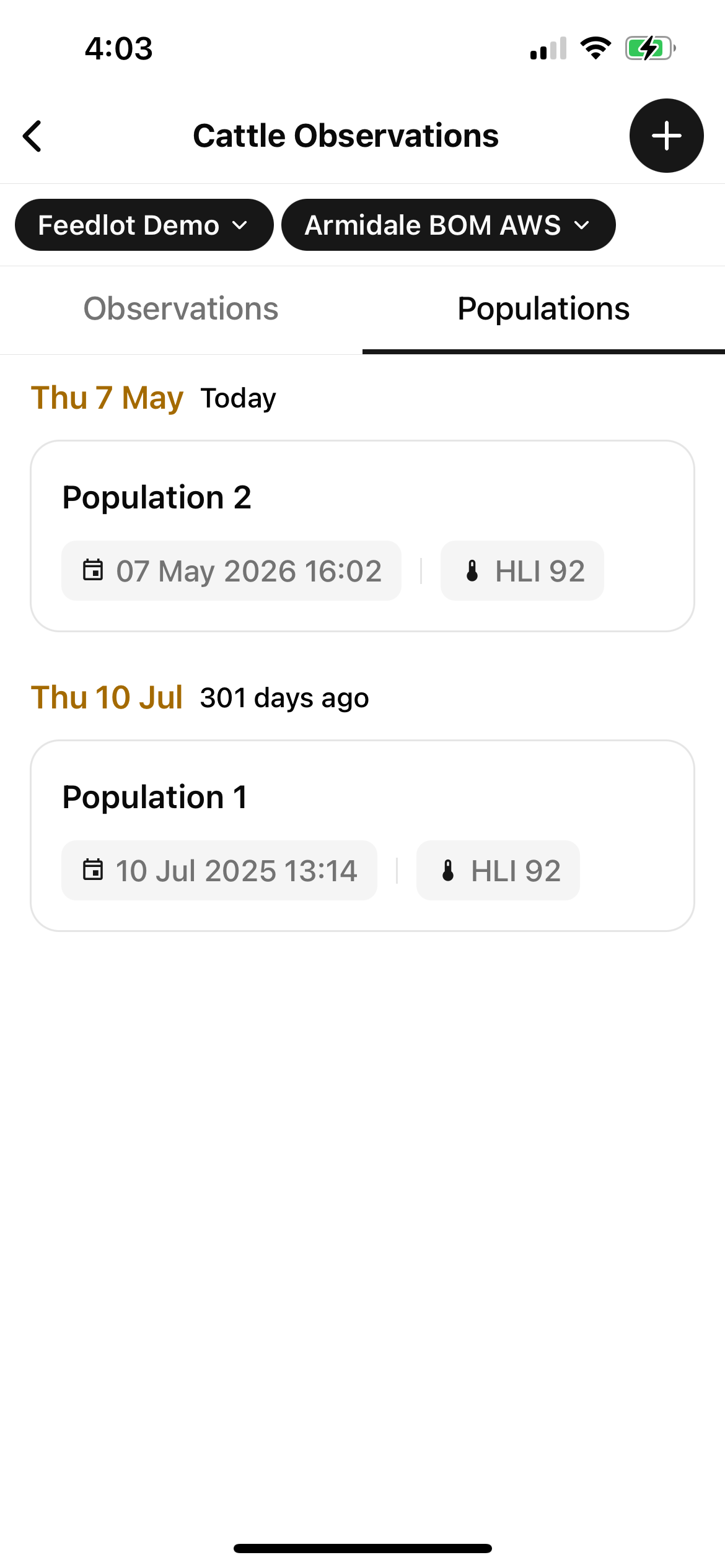
If you select one of your populations you can view its full information. You can also delete the population by selecting the Delete Population button at the bottom of the page.
Recording a new observation
Now that you have created your cattle population/s, you can start recording observations.
-
Go to the Observations tab
-
Select the + button in the top right-hand corner
-
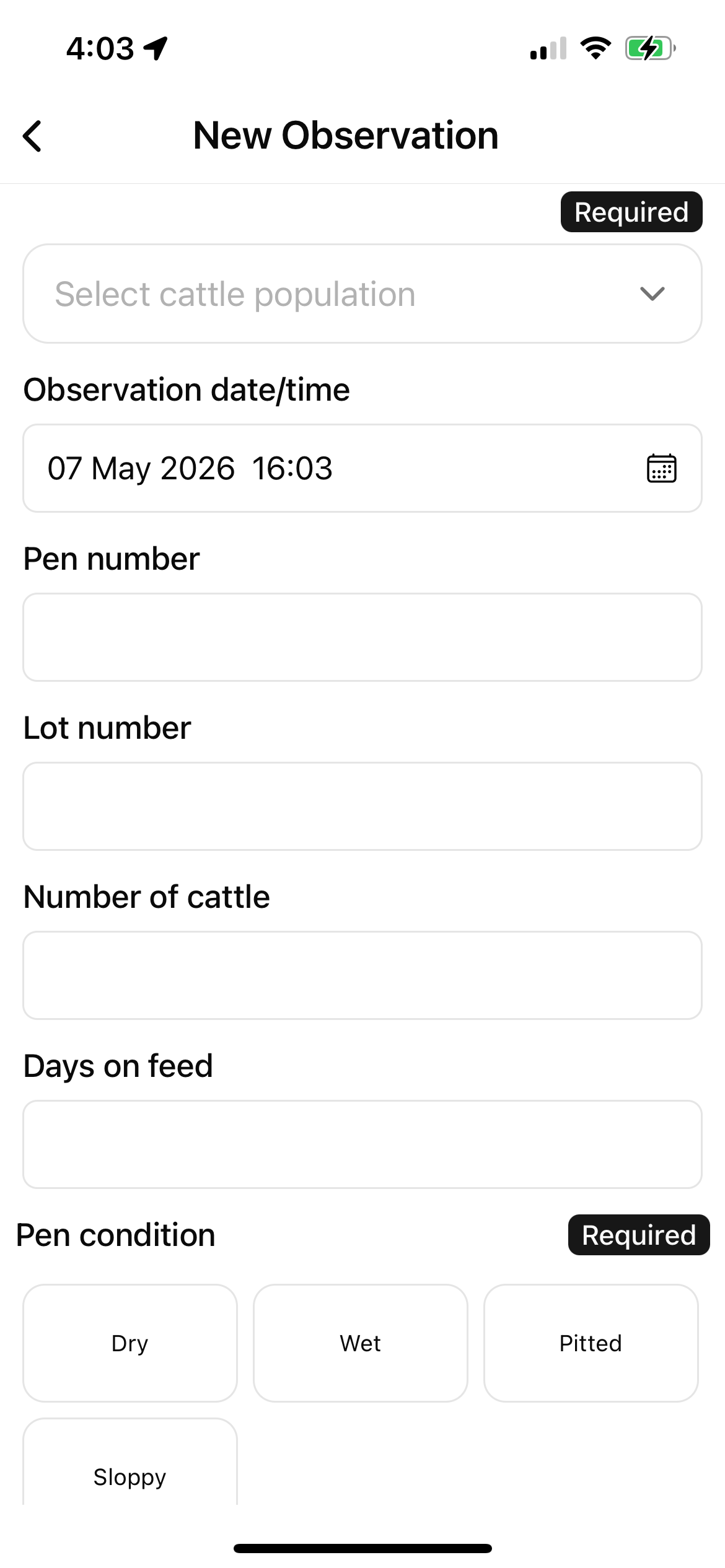
A form should be shown that looks like this:
-
You must enter the following information (fields marked as required):
-
Cattle population - the names of the populations (1 or more) being observed
-
Pen condition
-
Coat condition
-
Ration
-
Feed consumption drop
-
Extra water provided
-
Pant score trigger - see details below
-
You can also provide information in the optional fields if you know the answers.
-
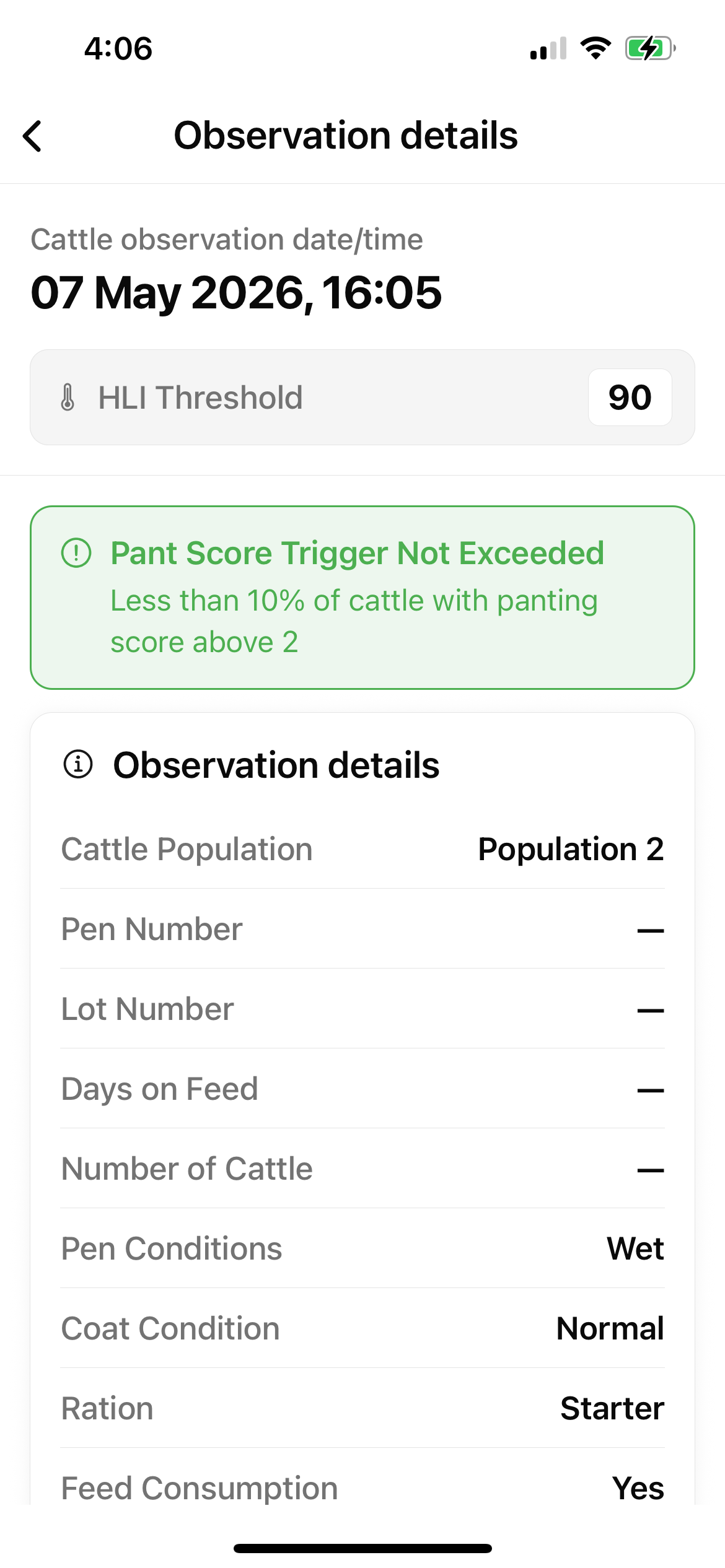
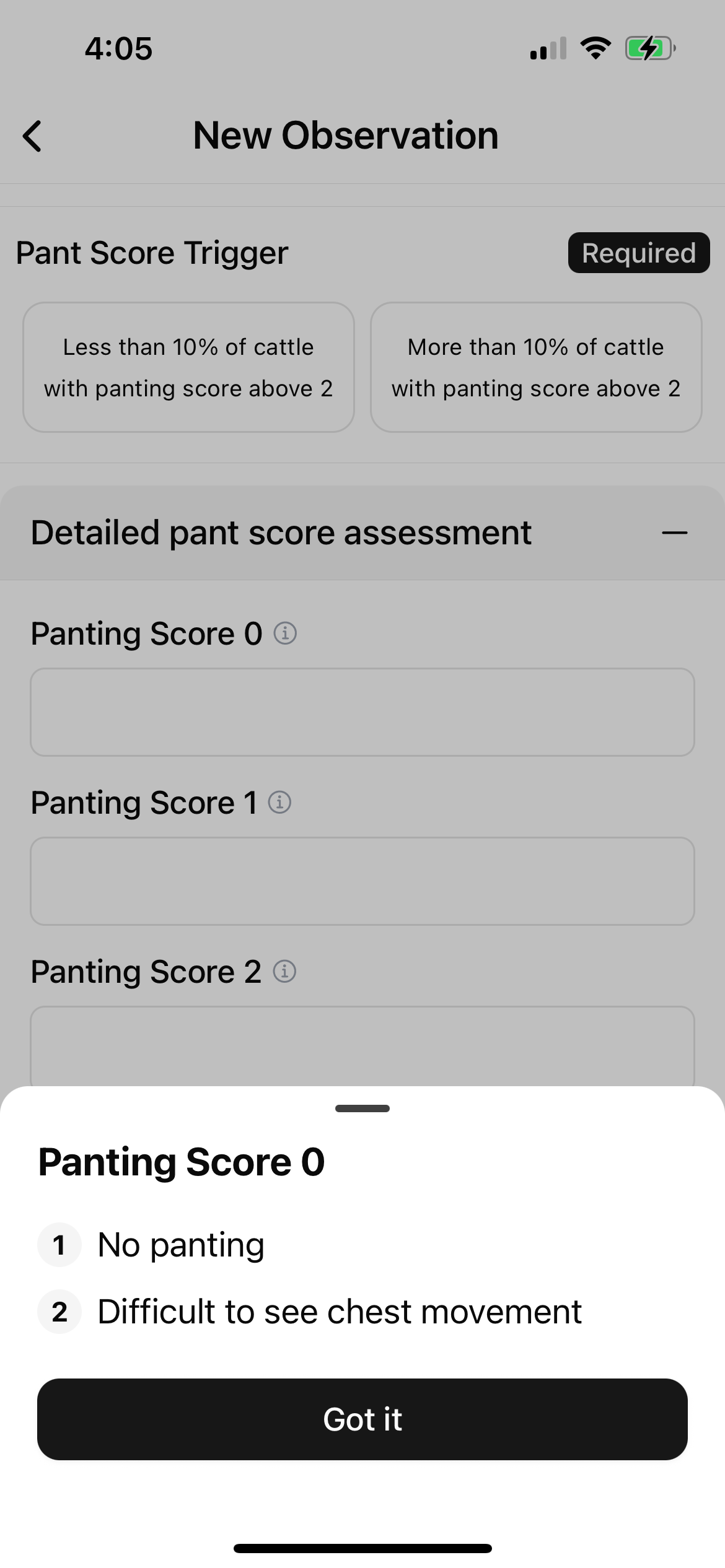
To complete the Pant Score Assessment you have two options:
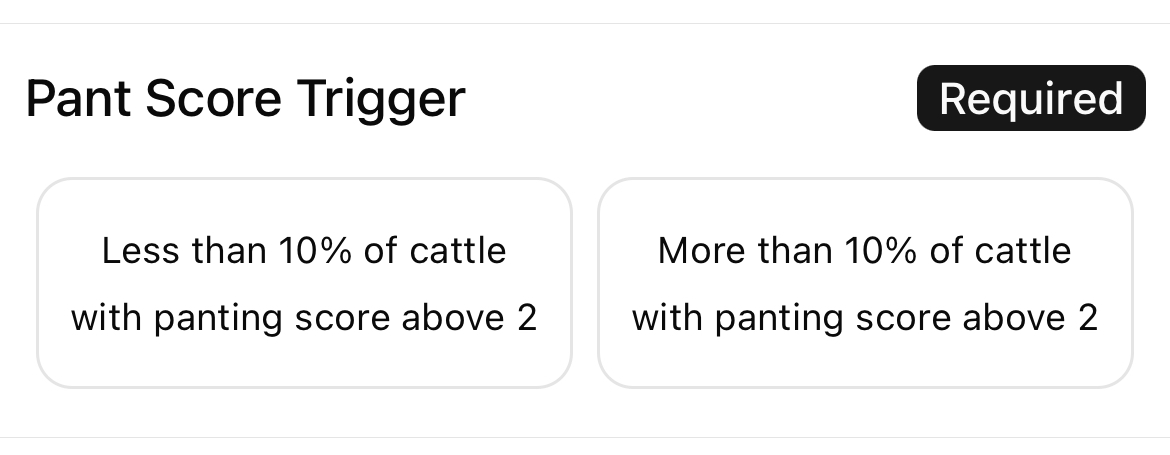
1) Use the quick option of assessing whether the Cattle Pant Score Trigger was exceeded, with a selection of yes or no. Consider whether the number of cattle observed with pant scores above 2 was more than 10% of the cattle in each pen. If you’re unsure of specific numbers, just consider:
-
Less than 10% means not many animals have pant scores above 2.
-
More than 10% means a noteworthy number of animals have pant scores above 2.
2) You can also use the Detailed Pant Score Assessment. For this, you can enter the number of cattle observed with each panting score. For information about symptoms of each panting score, select its 'i' icon (example below).
You will still need to select the Pant Score Trigger before selecting Save Observation.
-
Optionally, you can also upload photos or videos or add comments about your observation.
-
Once you’ve filled out all the information, select Save Observation.
Managing Observations
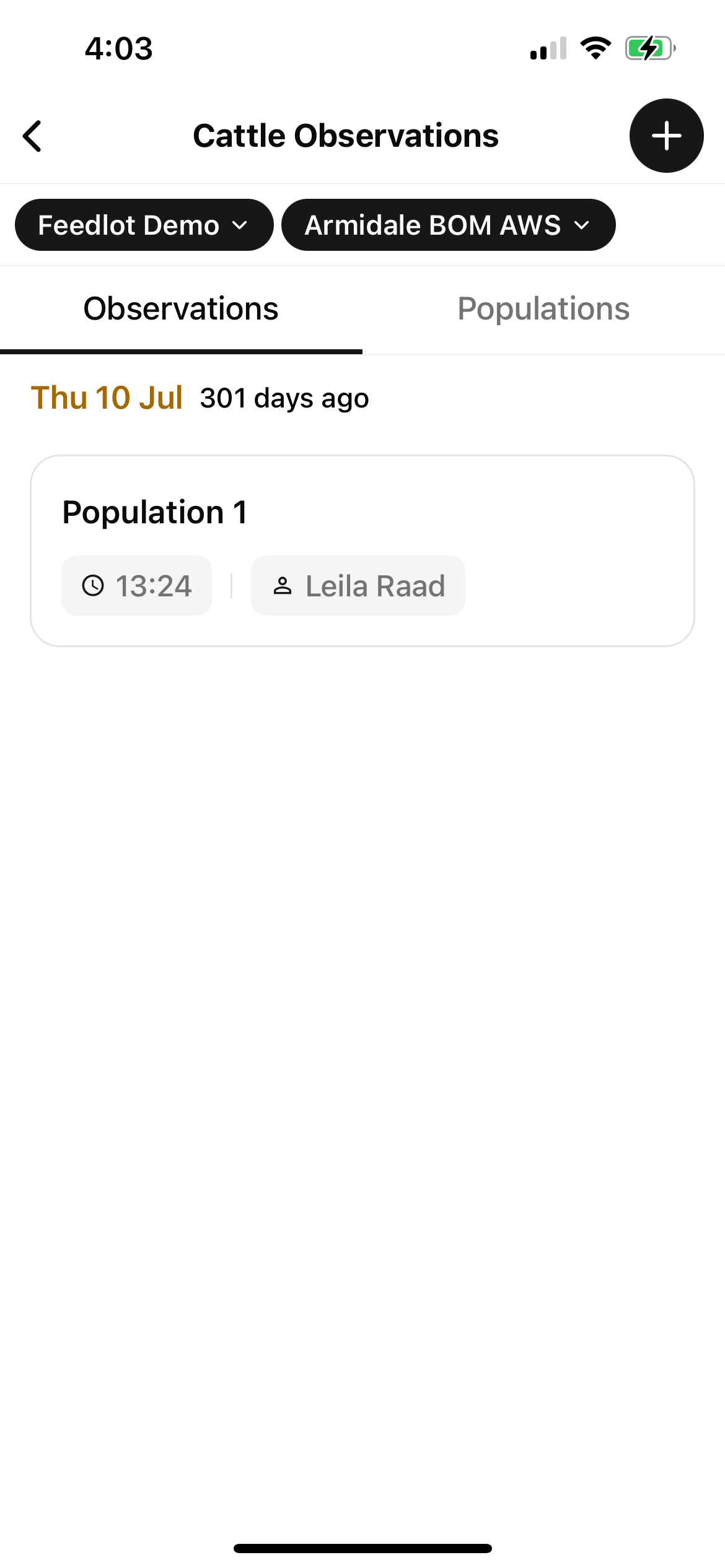
In the observations summary list (shown below), you can now view your created observation’s:
-
Name
-
User - who created it.
-
Observation time

If you select one of your observations you can view its full information. You can also delete the observation by selecting the Delete Observation button at the bottom of the page.
The HLI threshold can be used to determine which AHLU category you should be looking at for these cattle. If the pens are wet it may be considerably lower than you expect!